
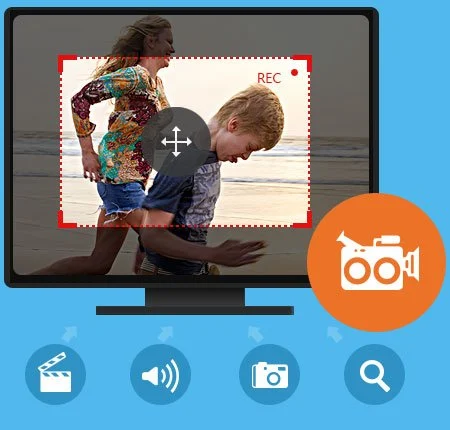
Screen Capture 是一款流行且易于使用的软件,它可以帮助您录制视频和音频以及为 Windows 用户捕获屏幕。
捕获屏幕并以最佳质量录制在线视频
根据您的需要轻松自定义屏幕大小
录制音频文件并以 100% 原始质量保存
完成录制后立即预览捕获的屏幕视频
输出录制的视频/音频并将其保存在您的PC/Mac电脑
在高质量的
屏幕捕捉软件中录制视频和捕捉屏幕可帮助您轻松捕捉屏幕移动和动作。如果你想制作一些教学视频或教程,捕捉一些有趣的截图、网络摄像头内容、视频通话和游戏视频,或者想抓取一些在线/流媒体视频,你可以使用这个超级录像机来实现它。
更重要的是,当您录制视频时,您可以在捕获之前选择视频屏幕的区域大小。自定义区域大小时有两种选择,选择固定匹配,如 1280*720,也可以拖动鼠标确定。此外,您可以将视频录制保存为 MP4 或 WMV,以便在播放器上轻松播放。
以最简单的方式录制音频文件
除了录制视频外,屏幕截图也是一个录音机。它可以在 PC/Mac 上录制音频文件,如系统音频和麦克风语音。
采集音频文件时,需要先选择音频源或对应的音频设备。例如,如果您在 PC/Mac 屏幕上拍摄电影,您最好选择系统语音并关闭麦克风以防出现噪音。如果您录制视频教程,您可以选择麦克风语音。您也可以根据自己的需要选择两者。录制的音频文件将根据需要保存为 MP3、AAC、M4A 或 WMA。
设置拍摄时间和光标
通常,当您拍摄长时间的视频时,您可能会因为一直观看视频而感到不安,以防录制错误的部分。这款屏幕捕捉软件功能强大,可以帮助您设置录制时间。只要您输入结束时间,它就会自动停止捕获屏幕内容,当它达到限制的时间。
此外,它还支持您设置光标的效果,使您的操作更清晰,更易于跟踪。如显示光标、高亮光标、更改光标颜色、甚至高亮点击等等。
完成捕获后预览视频
在录制之前,您可以更改输出视频的保存位置。
完成截屏过程后,您可以直接预览视频。并且当你预览它时,你可以调整音量以确保视频达到合适的程度。然后您可以将其保存在您的 Windows/Mac 计算机上并自由享受。
File size: 58 MB
Screen Capture is popular and easy-to-use software, which can help you record video and audio as well as capture screen for windows users.
Capture screen and record online video with the best quality
Easily customize the screen size according to your needs
Record audio files and save them with 100% original quality
Preview captured screen video immediately after you finish recording
Output the recorded video/audio and save it on your PC/Mac computer
Record video and capture screen in high quality
Screen Capture software helps you capture screen movements and actions easily. If you want to create some teaching videos or tutorials, capture some interesting screenshot, webcam contents, video call chats and game videos, or want to grab some online/ streaming videos, You can use this super Video Recorder to achieve it.
What’s more, when you record your video, you can select the area size of video screen before capturing. There are two options when customizing your area size, select a fixed match like 1280*720, or you can drag your mouse to determine it. Moreover, you can save the video recordings as MP4 or WMV for easy playback on your player.
Record audio files in the easiest way
Besides recording videos, the Screen Capture is also an Audio Recorder. It can record audio files on PC/Mac like system audio and microphone voice.
When you capture the audio files, you need to choose the audio source or corresponding audio device firstly. For example, if you capture movies on your PC/Mac screen, you’d better to choose system voice and close microphone in case of noise. If you record video tutorials, you can select microphone voice. Also you can choose both of them according to your needs. And the recorded audio file will be saved as MP3, AAC, M4A or WMA as you wish.
Set capture time and cursor
Usually, when you capture a long time video, you may feel upset because of keeping watching the video in case of recording wrong part. Powerfully, this Screen Capture software can help you set recording time. It will stop capturing the screen contents automatically as long as you input the ending time when it is up to the limited time.
Besides, it also supports you to set the cursor’s effects to make your operation more clearly and easier to track. Such as show cursor, highlight cursor, change the color of cursor, even highlight clicks and more.
Preview your video after finishing capturing
Before recording, you can change the save location of the output videos.
After you complete the process of capturing screen, you can preview the video directly. And when you preview it, you can adjust the volume to ensure the video is up to suitable degree. And then you can save it on your Windows/Mac computer and enjoy it freely.
Homepage
Download rapidgator
https://rg.to/file/35ff5fd5ac903d029c7edb0f33b50a9f/TipardScreenCapture2.rar.html
Download nitroflare
https://nitro.download/view/FED949283D0BB72/TipardScreenCapture2.rar
Download 百度网盘
链接: https://pan.baidu.com/s/1edSH6Dos57ej34gCq1usWA?pwd=3psu 提取码: 3psu
原创文章,作者:steven,如若转载,请注明出处:https://rr3d.cn/31035.html
